Wednesday, March 30, 2011

Press Release: Get Access to Texts Copied Earlier to Clipboard by Pressing the Idle Caps Lock Key

2011-03-30
Get Access to Texts Copied Earlier to Clipboard by Pressing the Idle Caps Lock Key
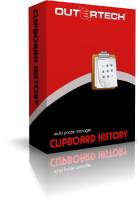
Outertech has released Clipboard History 1.0, a freeware Windows Clipboard manager. With Clipboard History you can access up to twenty texts previously copied to the Clipboard, using the usually idle Caps Lock key.

When you press the Caps Lock key, you will see a menu of saved texts. Select a text with the keyboard or with your mouse and it will be pasted to the current application. You can add up to twenty permanent predefined text clips (or "Stickies") to this menu. Clipboard History offers also advanced features like text filtering and fixing of multiline browser links.

Along with Clipboard History, Outertech has updated all its current applications.

Linkman 8.0 (short for Link Manager) is a bookmark manager designed to handle large numbers of links. Let's face it - browser bookmark systems were designed with the casual internet user in mind. But for some of us, links and bookmarks are part of our daily work lives. Things get pretty unwieldy with thousands (and for some folks, even ten thousands!) of bookmarks. Linkman integrates with Firefox, Internet Explorer, Google Chrome and Opera, and supports bookmark synchronization between browsers and among computers.

Cacheman 7.10 (short for Cache Manager) is a Windows performance optimization tool. The computer cache is a special high-speed storage method. Requested data can be retrieved faster from a local cache than from its original location. Cacheman tweaks cache components for a faster computer. You can use Auto-Optimize to get the best tweaks for all cache parameters. Cacheman also allows you to reduce lag in computer games, by giving more power to the chosen game, and less to the background programs that would otherwise slow it down.

System requirements for all apps: Windows XP, Vista or 7, 32 or 64bit.


Links:
Clipboard History page: http://www.outertech.com/clipboard-history
Linkman page: http://www.outertech.com/bookmark-manager
Cacheman page: http://www.outertech.com/faster-computer
Download page: http://www.outertech.com/en/download
Screenshot gallery: http://www.outertech.com/en/screenshot-gallery
Company page: http://www.outertech.com/

Company:
Incorporated in 1999, Outertech is a software development company based in Coburg, Germany. Our mission statement: "To make computers more stable, more useful, faster, and easier to use." Outertech's lead product is Cacheman (short for Cache Manager), an award-winning Microsoft Windows performance optimization program initially developed in 1996 as the very first Windows optimization software ever. Cacheman is currently available as version 7 for Windows XP, Vista and Windows 7. Linkman (short for Link Manager) is another major Outertech project, an outstanding bookmark manager that integrates with the Firefox, Internet Explorer, Chrome, and Opera browsers. Initially released in 1997, Linkman's XML databases have been praised for 14 years of bookmark data security. Version 8 was released in March 2011.

Contacts:
Thomas Reimann
E-mail: distribution@outertech.com
Phone: +49(0)9561 9762733
Fax: +49(0)9561 6756257
Have not personally checked this software out, but I thought it might be of interest.

I have seen this on ZDNet, CNet, and other reputable download sites for freeware.

If you have used this, let me know what you think of it.

Posted via email from sefcug's posterous

Wednesday, March 23, 2011

Print to PDF or Image on Windows

I have talked about the Bullzip PDF Printer a few times at the BRCS Freeware SIG, and have it installed on my Vista notebook.

This cybernetnews.com post details quite a few options that I have not yet used, and did not even know were available. I will have to check into these other options. I normally just use it when I don't have a printer hooked up to the notebook, which is most of the time.

If you need a good PDF printing utility, I recommend this.

Check it out and let me know what you think. Either comment on this post, or get with me at the BRCS Freeware SIG session.

Posted via email from sefcug's posterous

Sunday, February 27, 2011

Where I Find Free Software February 24, 2011 Session

After a long absence due to meeting place being unavailable for November and December of 2010, and the moderator's unavailability for January 2011, the BRCS Freeware Special Interest Group (SIG) met in the evening of Thursday, February 24, 2011.

The subject was where to find free software. We were actually able to go to a few of the sites mentioned, and then our connection to the internet suddenly died out.

The presentation, notes, and a document containing all the links mentioned, have been posted in LibreOffice, Microsoft, and PDF formats at:

http://www.box.net/brcs-freewaresig#/brcs-freewaresig/1/68014370.

These are all under a Creative Commons license, so you may use, alter to suit your own needs, share with others, etc., as long as attribution to http://brcsfreewaresig.blogspot.com/ is shown, it is for noncommercial purposes, and it is shared under the same licensing.

As always, please comment if you need more information, or if you have further information.

Thursday, February 10, 2011

MakeUseOf Guides

There are lots of free PDF guides available at MakeUseOf.

I have downloaded and use quite a few of them.

There are some great ideas for user group presentations, as well as a wealth of useful information.

I highly recommend MakeUseOf.com for computer users of all ages and level of experience.

Posted via email from sefcug's posterous

Wednesday, February 2, 2011

FACUG Conference Cruise January 27-31, 2011 - a set on Flickr

I am not much of a photographer, but here are some photos from the cruise, at least the ones that came out OK.

Posted via email from sefcug's posterous

Thursday, January 27, 2011

A Transparent Lock for your Windows Computer

This looks like a regular desktop but it’s actually locked. Surprised? Read on..

clear windows lock

Before leaving the desk, you can quickly lock your computer using the “Windows logo key + L” shortcut and that will prevent anyone else from using the system in your absence.

However, if you have programs running on your computer that you want others to see while you are away but without giving them access to the system, try Clearlock.

This is tiny Windows utility that will also lock your computer but adds a transparent layer to your desktop screen. That means people can view what happening on the desktop but they can’t use it unless they have a password.

To get started, launch Clearlock (it emits an irritating sound the first time you run it), give a password and your screen /computer gets locked. The password box will also disappear in the next few seconds.

This utility will also come handy if you have placed your computer at a public place (like a kiosk) and its playing some presentation in a loop – the passersby can watch the presentation but won’t be able to mess with the workstation even if you are away for lunch. You can also use it to protect your system from kids at home.

**********

Source: Digital Inspiration 27JAN11 Post

*********

Should be useful for running a looped promotional presentation/video at a user group meeting, while everyone coming in, so visitors get an idea of what your group is all about.  I think I will give a try at the next general meeting, while checking members in.

If anyone has used this or similar technology, please let me know how it worked out for you.


Posted via email from sefcug's posterous

Wednesday, January 26, 2011

LibreOffice 3.3, the open source office suite, now available

LibreOffice -- the Document Foundation's fork of OpenOffice -- has come a long way since the project was first announced in September 2010. Today, the Foundation has announced that its first stable release, LibreOffice 3.3, is ready to download.

Among the many changes you'll find in version 3.3 are the arrival of new import filters and improvements to existing ones -- key features when you're trying to persuade users to migrate from competing suites like Microsoft Office, Works, or WordPerfect. Calc (the LibreOffice spreadsheet app) now boasts better Excel interoperability, SVG images can be opened and modified in Draw, and they can also be imported into Writer.

The Suite's PowerPoint alternative -- Presenter -- now ships with a presentation mode plug-in which makes controlling slideshows from your laptop a breeze. Testers will enjoy the addition of Experimental Mode, which you can toggle if you'd like to play with new features before they've officially been added to LibreOffice. It's a bit like the about:flags page in Google Chrome. LibreOffice 3.3 also sports a long list of interface and usability tweaks -- check out this page at the official site for a complete rundown.

Download LibreOffice 3.3 for Windows, Mac, or Linux

Tags: apps, document foundation, DocumentFoundation, libreoffice, libreoffice 3.3, Libreoffice3.3, linux, mac, office, open source, openoffice, OpenSource, oss, productivity, suite, windows

I have been waiting for a stable version, so I can try it out instead of OpenOffice.org. Thanks DownloadSquad

Will be trying out soon.

If you have worked with LibreOffice, let me know what you think about it.

Posted via email from sefcug's posterous

Tuesday, January 25, 2011

The Ultimate Scientific Calculator. From Microsoft. And It's Free.

The Ultimate Scientific Calculator. From Microsoft. And It's Free.

Microsoft used to sell a program called Mathematics, which was aimed at students.  It was a very capable product, able to solve equations, draw graphs, do calculus, and much more.  Ideal for anyone involved with mathematics, science, engineering, physics, and so on.

So why do I say "used to sell"?  Have they stopped producing it?  No.  They've merely stopped selling it, and are now giving it away!  There's even a brand new version, 4,0, which was launched only last week.

You can get it from http://www.microsoft.com/education/products/student/math/default.aspx.  It runs on all versions of Windows from XP onwards, and is available in both 32- and 64-bit flavours.  The installer itself is an 18 MB download, although you'll also need .NET Framework 3.5 SP1, which is another 53 MB if you don't already have it.

If you're a student, or you need to do mathematical calculations in your work, then check out Microsoft Mathematics.  And if you use Word or OneNote a lot, there's even a version which works as an add-on in those programs too.


Microsoft Mathematics


Another good find from gizmo's freeware.

Posted via email from sefcug's posterous

Tuesday, January 18, 2011

RedNotebook: Free Daily Journal Software

Looks interesting.

I am not much of a journalizer myself, but if I wanted to try it this sounds real good, and the price is right.

Anyone into journaling? If so, try it and let me know what you think.

Posted via email from sefcug's posterous

Free Licenses of PDFZilla Time-limited Giveaway - Offer Expires February 5, 2011


Now users can get free PDFZilla giveaway licenses to convert PDF documents to editable formats.

PDFZilla.com today starts their free Time-limited Giveaway promotion for the powerful PDF converter product - PDFZilla at http://www.pdfzilla.com/giveaway.html


The free giveaway will be closed on Feb 5th, 2011. During this time PDFZilla is for free for all users and visitors.

PDF (Portable Document Format) is a file type designed by Adobe System for document exchange and mostly used to represent bi-dimensional docs independent of software, hardware or operating system PDF files can encompass text, fonts, images and even 2D vector graphics. This specific kind of document is used on a large scale, and it stands tall as one of the best-made file types. 

PDFZilla is a much more useful thing to have around than the legendary movie monster. With PDFZilla, users will be able to convert a PDF document into Word with only 3 mouse clicks. The program preserves the original quality of the PDF files and converts both text and images. Users can convert the entire PDF or selected pages only and event convert multiple files in the batch mode, which may come in very handy when working with large book or document archives. In addition to the Word format, PDFZilla can convert PDF files to DOC, RTF, TXT, BMP, JPG, GIF, TIF, HTML and SWF files. Finally, the program has a very simple and nice-looking interface that will take a moment or two to get used to. 

The giveaway is 100% free with no functional limitation. Giveaway promotion page: http://www.pdfzilla.com/giveaway.html


*********

Received this via an email from Linda Gonse of the Orange County PC Users' Group, a fellow Newsletter Editor.


Thank you Linda.

Posted via email from sefcug's posterous

Wednesday, January 12, 2011

34 Brand New Free Programs

Each year our friends over at the Donation Coder website hold a contest to encourage the development of new free software.  The results of their 2011 contest have just been announced with 34 new programs of which 20 were placed in the top category.

Mostly these programs are small specialist utilities.  They are not exactly life changing but most users will find something here that will interest them.

I tried two that were were relevant to me and they both worked well.   The first was Speed Monitor that allows you to monitor and track the load speed of websites over time. I’m using it right now to monitor the performance of the Gizmos’ Freeware website.  The second was Cautomaton that allows you automate actions that are otherwise hidden away in the context menu of a file. It’s for experienced users only but it did allow me to solve a problem that had otherwise eluded me.

Most of the programs look to be freeware but I haven’t checked all 34 so it is possible that some are licensed as donationware using the fair and equitable Donationcoder system where a single donation to the site gives you access to all the programs on the site.  I made a donation and I hope you do as well as this site does a great job helping freeware and freeware authors.

This list is definitely worth checking out.  Like me you might find a utility that solves a long standing problem.

http://www.donationcoder.com/nany2011/

Gizmo


Always something good from Gizmo. I have not tried any of these myself yet, but I usually find something every year from where he is sending us.

If you find something you think is useful, please let me know about it.

Posted via email from sefcug's posterous

Friday, January 7, 2011

Turn Google Chrome into a Text Editor with Write Space - Linux Magazine Online

Turn Google Chrome into a Text Editor with Write Space

Jan 07, 2011 7:52pm GMT

Dmitri Popov

The Write Space app for Google Chrome and Chromium can come in rather handy when you need to quickly scribble down a note without leaving the browser.

Once installed, Write Space adds a no-frills text editor to the browser. Despite its simplicity, Write Space has a handful of nifty features. For example, the persistent auto-save function saves the text file on every key press, so you don't have to worry about losing your changes. Write Space also offers live document statistics, such as number of words, line, and characters. You don't need an Internet connection in order to use Write Space, and the app saves text files locally. Write Space also makes a great tool for users practicing the art of distraction-free writing. Press F11 while in the browser to switch the app to the full-screen mode. The app's preferences screen lets you tweak Write Space's settings. Here you can change the default font and font size, adjust line spacing, tweak color scheme, etc. Using the Import button, you can load an existing text file into the app.

The main weakness of the current version of Write Space is the lack of an export feature. You can, of course, export the text manually by copying the text and pasting it into an external text editor, but this workaround doesn't replace a proper export feature. There is no synchronization capabilities either, so Write Space is limited to your desktop -- at least for now.

Comments


Print this page.

Recommend

Diesen Artikel kommentieren

Slashdot it!

Delicious

Share on Facebook

Tweet!

Digg

I use Google Chrome almost all the time as my browser. I have installed this and it is good for something quick, but is still very rudimentary.

Do not have to open a separate text editor though, so it does save some time if I want to work on a comment or something and then just paste it in when I have it right.

Works wherever Google Chrome works, and free.

Worth a try in my opinion.

Posted via email from sefcug's posterous

Wednesday, January 5, 2011

CHRISdotTODD: Move Off Screen Window in Windows 7

Move Off Screen Window in Windows 7

Back in Windows XP, I found it easy to recover a window that the Title Bar was off the screen. When this occurred in Windows 7, I was surprised to find the same trick didn't work (right-click the icon in the Task bar, select Move, and use the arrow keys to grab and move the window).

In Windows 7, it's not difficult, just different.

  1. Select the program in the Task Bar.
  2. Hold the Windows key and press an arrow key.
  3. Repeat the arrow key movement as necessary.
The Windows key + arrow key offers other interesting options even with fully visible windows. Try Windows key + right or left arrow to get the window to take 1/2 of the screen. Use Windows key + up or down arrow to maximize or minimize, respectively, the window.

I have not had this problem yet. But it is good to know in advance, so I don't go crazy.

Posted via email from sefcug's posterous

Tuesday, January 4, 2011

Annoyance: The 1GB Wall | PCMech

If you have a file that’s over 1GB you need to send to someone else via internet, you have to split it first. The easiest way to do this is with 7-Zip:

image

When creating an archive, you purposely have the file split into 1GB pieces on creation so MegaUpload will accept it. Afterward you have to send each file individually. It’s also required that the recipient has 7-Zip

installed and knows how to put the pieces together (which is easy) and extract the file once received.

Remember, the file split/MegaUpload method is the best (or should I say least worst) way of sending high volumes of data.

The whole article explains other options, but the way shown is what they prefer for large files.

I do use 7-zip, but have not tried splitting files with it.

Posted via email from sefcug's posterous